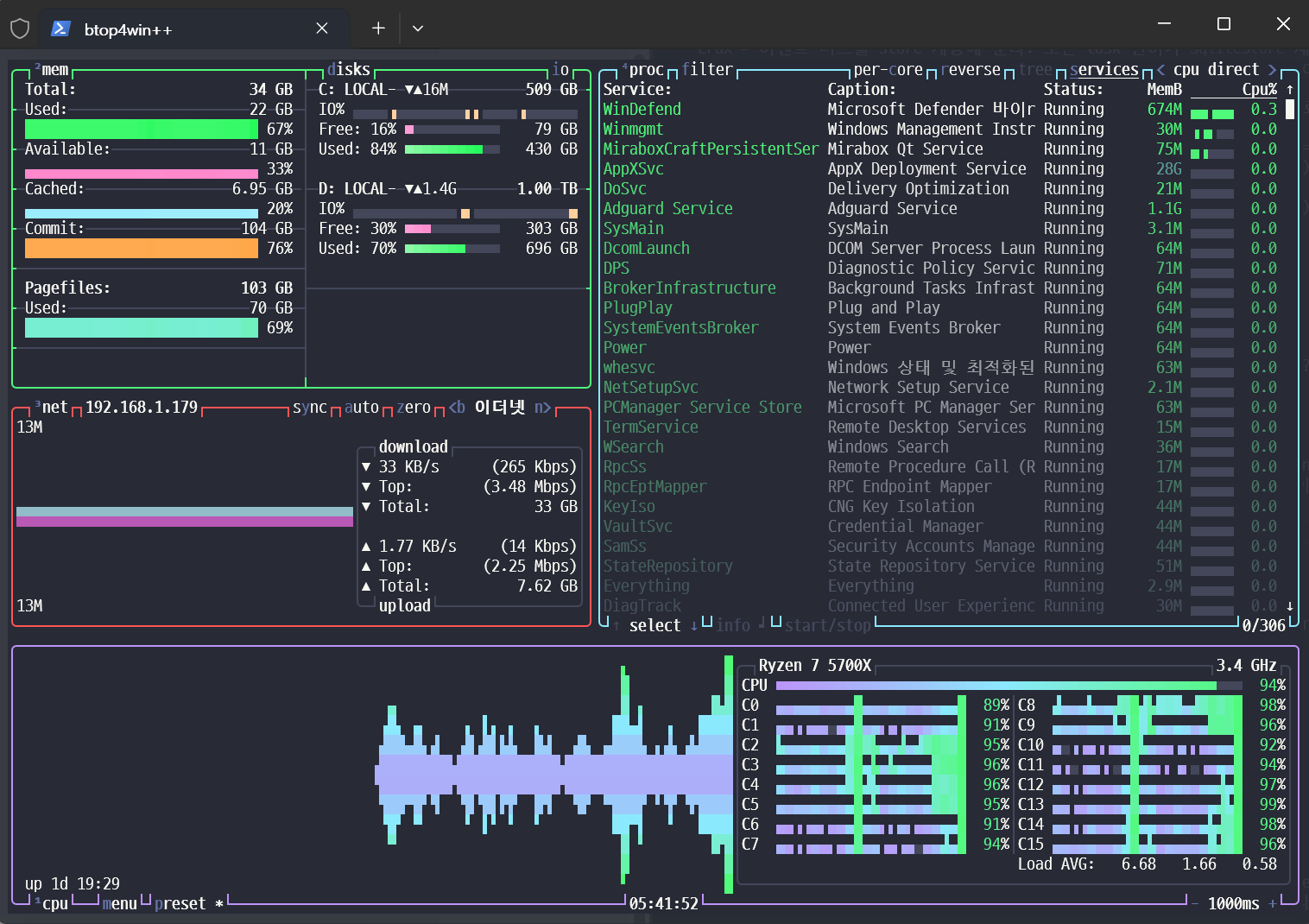
Whether you're installing macOS fresh or a Linux distribution, one of the first things you install is BTOP.
I'll briefly share my settings. To access the settings, press the [ESC] key to bring up the menu and click or select [OPTION].
Color theme: dracula / You can set this to your liking. I tried various themes and chose dracula because it's vibrant but not overwhelming.
Update ms: 1000ms (The default is 2000ms, but setting it to around 1000ms makes it look better)
Graph symbol: block (The default is braille. Changing it to block makes it look much nicer haha)
Base 10 sizes: True (The units change. You can enable or disable this)
Go to the cpu tab and change Cpu bottom to True
That's it.
The advantage is that it's clean and allows you to see information at a glance. If you want to do serious monitoring, there are many other solutions available, but I usually allocate about 1/4 of my terminal space to btop and keep it running. Does it make you feel better to see the usage of cpu, ram, processor, etc.? haha
The attached image is btop in use on Windows!